
Scheduling an AWS CLI backup to S3 in Linux
I'll cover creation of the S3 bucket, configuration of the AWS IAM security, installation of the AWS CLI, some key commands, and creating a cron job to automate it.


Hot on the heels of standing up a new Ubuntu server with a Docker stack, I'll need to get a regular scheduled file-level backup job set up. I'll cover creation of the S3 bucket, configuration of the AWS IAM security, installation of the AWS CLI, some key commands, and creating a cron job to automate it.
The good news is that (unless you have a massive amount of change) the data backed up is relatively cheap, and the weekly backup should just take deltas, or, just the files that have changed. Disclaimer: All services have charges. You are responsible for these so investigate thoroughly!
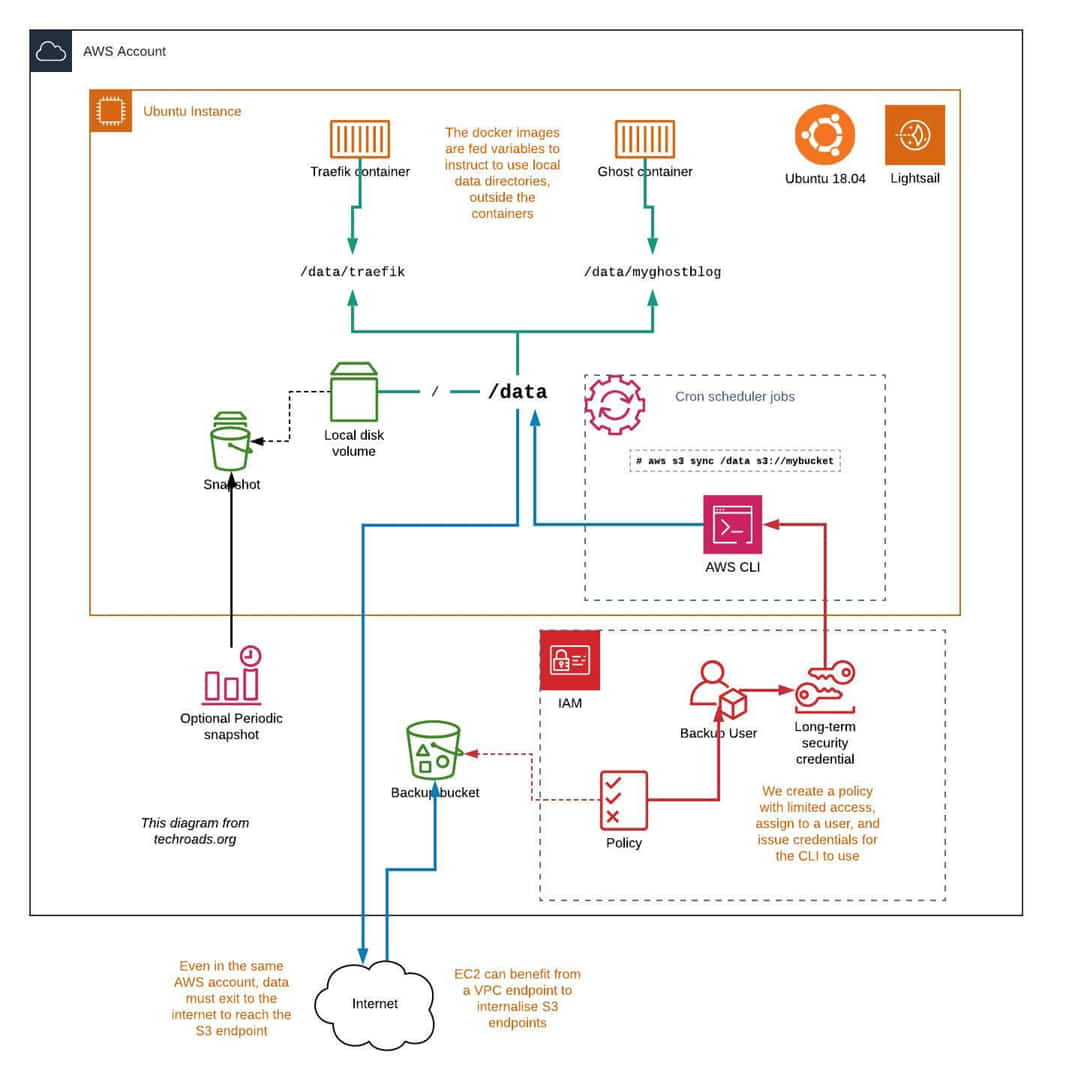
This walkthrough uses the AWS Management Console to set up AWS. If this is a production system you could make use of the CLI, or even better, code it with CloudFormation.
sync command with some sort of script thus. Or, if it's possible to find out what they were, manually create the directories on recovery.Create the S3 bucket for backups
- Assuming you are already set up to use Amazon Web Services, log in to the management console. If not, head to https://aws.amazon.com/
- Find the S3 section. It's on https://s3.console.aws.amazon.com/s3/home
- Click "Create bucket".
- You'll be asked to choose a bucket name. This needs to be world-unique. I am using a combination like servername-backup-10digitrandomstring, e.g.
linux123-backup-skhvynirme. I used a string generator from random.org to make a random string for me to append and make sure I have a unique name. We'll continue with that fictional example bucket name. Make a note of yours to later back up to it. - You will need to select a region. If your server is on Lightsail or EC2, make sure the bucket is in the same region as your server. If not, it doesn't matter so much the location, but be aware that most hosting companies charge for egress from the web server, and AWS is no exception. Additionally, S3 pricing varies by region.
- Select the region and go to the next screen.
- On the second screen you can optionally choose versioning and encryption. I'm going to use both. You could use versioning if you want to keep historical copies of changed files.
- Go to the next screen, the public access can remain off, then go to the next screen again. Check the settings and create the bucket.
- Make a note of the bucket ARN. This can be found by checking the box next to your bucket in the main S3 screen, and looking to the top right of the pop-in box. You will see a button "Copy bucket ARN".
- Optional: Set the storage class. You'll need to figure out which you need, based on how often you might want to recover and what the costs are. I am trying the "General intelli-tier" class. Setting this in the bucket properties for the whole bucket should cope with new objects.

Existing objects can be selected in the GUI, and recursively changed to intelligent tiering.
Configure IAM security for the S3 backup CLI user
Let's jump to the IAM section of the management console. It's on: https://console.aws.amazon.com/iam/home
Create a S3 backup user IAM policy
First, we are going to make a policy for the bucket user with these features:
- The S3 service (only)
- List all
- Read all
- Write all
- The backup bucket (only)
- All objects in that bucket
I have generated a suitable example using the policy manager in the AWS management console.
- In the IAM screen, select Policies in the left bar.
- Select the Create Policy button
- Change tabs to the JSON tab
- Paste in the below code block replacing everything already there
- Replace the REPLACE-WITH-YOUR-ARN with your ARN. Note the second one has a forward slash-asterisk after it:
/*
{
        "Version": "2012-10-17",
        "Statement": [
                {
                        "Sid": "S3CLIBackup",
                        "Effect": "Allow",
                        "Action": [
                                "s3:*"
                        ],
                        "Resource": [
                                "REPLACE-WITH-YOUR-ARN",
                                "REPLACE-WITH-YOUR-ARN/*"
                ]
                }
        ]
}
6. Click Review Policy. If the code syntax is valid you will go to a Review policy screen. As below, enter a policy name, and select the Create Policy button.

Create the IAM S3 backup user
- In the IAM screen, select Users in the left bar.
- Select the Add user button
- This user can only backup to that one bucket, so let's give the name as bucketname-user, e.g.
linux123-backup-skhvynirme-user - This user is just for the CLI to use, and does not need the console. We check the Programmatic access box and then the Next button.
- It is good practice to make use of groups and feel free to do so, but in this case we have a user tied to a specific bucket so for demo purposes, we can select Attach existing policies directly.
- Use the filters or search to find the policy you just made, and check the box next to it.
- Select Next. Unless you would like to tag, select Next again.
- If everything looks good on the review screen, select the Create user button.
- Now you have the opportunity to get the credentials that will be needed to give to the CLI in order for it to perform backups. Go into the user details and find
Create access keyfor CLI. - Copy the Access key ID. Click Show to display the Secret key and also copy. The secret can be added to a password manager, optionally select the Download .csv file and save to a secure location.
Note this is the only chance to get the Secret, so make sure you do!
Install the AWS CLI
Links do change, but right now the instruction link is:
https://docs.aws.amazon.com/cli/latest/userguide/getting-started-install.html
Installing the AWS (v2) CLI in Ubuntu / x86_64
A new install should be as simple as this.
cd # Go to HOME or /tmp
curl "https://awscli.amazonaws.com/awscli-exe-linux-x86_64.zip" -o "awscliv2.zip"
unzip awscliv2.zip
sudo ./aws/install
/usr/local/bin/aws --version
If successful, you should see output something like:
aws-cli/2.27.32 Python/3.13.3 Linux/6.8.0-1029-aws exe/x86_64.ubuntu.22
Configure AWS credentials
In order to send files to my backup bucket, I will need to add credentials and the desired region. If you are setting this up as the only CLI user, we'll configure the backup user as our default.
aws configure
AWS Access Key ID [None]: Enter your Access key from earlier here.
AWS Secret Access Key [None]: Enter your Secret from earlier here.
Default region name [None]: Enter your default region name here, e.g. us-east-1
Default output format [None]: Optionally, add a format, e.g. text
This will create two files in your home directory under a directory called .aws named config and credentials, should you wish to change these settings later.
For a basic test, you can try to grab a property from the bucket such as versioning state. Of course, replace linux123-backup-skhvynirme with your bucket name.
aws s3api get-bucket-versioning --bucket linux123-backup-skhvynirme
Which should return the versioning state:
Enabled
aws configure set default.s3.use_dualstack_endpoint trueManually run the first backup to S3 using the AWS CLI
Let's go into our data directory, e.g. mine is cd /data, and create our first backup manually. Be aware that this may use up some of your data allowance or incur a charge, even if you have a Lightsail instance in the same region as your bucket. The size of the directory to be backed up can be obtained with the du command, e.g.
du -sh /data
61M     /data
I am happy with 61MB, 40MB of that is images which are static and shouldn't need to be synced more than once.
You'll be able to research the options more if need be, but I am going to backup with the s3 sync flag, which will only take deltas following the first run. You may want to explore other options to do with the S3 storage classes, applied with the flag --storage-class.
I recommend adding --dryrun before your first run which won't actually do the sync. You'll also need to replace linux123-backup-skhvynirme with your bucket name.
If you have big log files or other junk you don't want to back up, check out --exclude .
Rather than fill the top level of the bucket with objects I like to have a "folder" to represent the folder I'm backing up, in this case data, so I am adding data to the bucket target path thus: s3://linux123-backup-skhvynirme/data . This is entirely optional. If you have multiple servers to back up you may wish to keep reusing the same bucket, with a suffix say s3://linux123-backup-skhvynirme/linuxserver01/data
aws s3 sync /data s3://linux123-backup-skhvynirme/data --dryrun
(dryrun) upload: myghostblog/data/ghost.db to s3://linux123-backup-skhvynirme/myghostblog/data/ghost.db
(dryrun) upload: myghostblog/images/2019/03/2018-10-19-14.15.26.picname.jpg to s3://linux123-backup-skhvynirme/myghostblog/images/2019/03/2018-10-19-14.15.26.picname.jpg
....etc
Capture errors
Running the above appending an option to capture standard errors will allow you to pick over any issues.
aws s3 sync /data s3://linux123-backup-skhvynirme/data --dryrun 2>/tmp/errordump
Then cat /tmp/errordump to view.
You may see error messages such as "seek() takes 2 positional arguments but 3 were given" on empty files, or "File does not exist", often because they are soft links to something inside a container, or "File/Directory is not readable.".
Fix "File does not exist."
If you know it's a link to a container file you can add --no-follow-symlinks
Fix "File/Directory is not readable."
By default your aws client probably cannot read some files that are restrictred to be seen by root. If you set up automation from the root cron as below, this won't be a problem for the automated runs.
For the purposes of your test, you can run the client with sudo & the -E flag to simulate the root access.
sudo -E aws s3 sync /data s3://backup-prod1-smuwboveyk/data --no-follow-symlinks --dryrun 2>/tmp/errordump
Errors sorted out. Next!
The /tmp/errordump file is now empty in my case. This looks good to me, and the target path names are fine so I run my command without the --dryrun and watch as my site is backed up. I also add the storage class I have chosen (default is "standard").
sudo -E aws s3 sync /data s3://backup-prod1-smuwboveyk/data --no-follow-symlinks --storage-class INTELLIGENT_TIERING
In a flash it's done and I can see the objects in the bucket.
It's good practice to get the sync running with no errors so that when we automate we can capture meaningful output to a log file.
Create an automated cron job for the S3 backup sync
We'll use the classic cron for automating the sync. Create a file in the /etc/cron.weekly directory with a name such as s3-data-backup . The contents should look like the below, substitute your bucket name and add any path suffix, symlink or exclude flags:
#!/bin/sh
#
# S3 Backup cron weekly

set -e

echo "Commencing S3 /data backup `date`" >> /var/log/backups/s3-data-sync.log
/usr/bin/aws s3 sync /data s3://linux123-backup-skhvynirme/data --no-follow-symlinks --storage-class INTELLIGENT_TIERING --output text >> /var/log/backups/s3-data-sync.log 2>&1
echo "Completed S3 /data backup `date`" >> /var/log/backups/s3-data-sync.log
Set the file owner to be root and the permissions to rwxr-xr-x.
sudo chown root:root s3-data-backup
sudo chmod 755 s3-data-backup
Create a backups log directory if it's not already there.
sudo mkdir /var/log/backupsYou should be able to see the outcome of your job after the weekly run - on Ubuntu you'll be able find the run times by listing the crontab file:
cat /etc/crontab
Give the root user the AWS CLI credentials
Because I am running my cron job as root, it will also need access to the CLI credentials that we configured, if you have been running so far as a non-root user such as ubuntu. Assuming you don't already have a .aws directory in your root home (check first), copy over the credentials directory like so:
sudo cp -rp ${HOME}/.aws /rootAdd a logfile rotation (optional)
Sudo-edit the log rotation file /etc/logrotate.d/rsyslog and add the log file entry /var/log/backups/s3-data-sync.log
If you add a line among the other entries above the rotation parameter block, the same rotation parameters will apply.
Housekeeping of old files in the bucket (optional)
This might or might not be a good idea depending on your application. If you know that some of the files are totally useless when stale, you could scratch them. If you have an app or database that is a mix of dynamic and static files, it might not be a good idea. If you do a recovery from your bucket, a key static file might be missing. If older static files are removed, they will probably be replaced next time you run a sync, but then you have a gap in your resilience model.
AWS suggest one option is to configure an expiry, then enable/disable it ad-hoc to manually clean up objects.
I can imagine a great usage would be if you have shuffled things around, moved a directory, moved an app between servers, that kind of thing. In that case, a purge of old data followed by a fresh sync would be optimal.
You might also want to consider a Transition, to move files to a lower storage tier after a certain time.
If you do want to automatically purge
Decide how many days old objects should be before purge, and if it's everything in the bucket vs. a subset.
In the console, inside the bucket profile, select Management -> Lifecycle -> Add lifecycle rule.
Give your rule a name like "60 days", choose all-objects if that's what you want, and Next.
Pass the Transition page with another Next.
Select the "Current version" check box (Previous as well if you have versioning enabled and want that too), and the number of days in the Expire field to say, 60. Optionally you can clean up incomplete multiparts, if that's a thing.
Check the review screen and apply if you wish.
Creating a Server EBS Snapshot
In the case of a real recovery from disaster, a good starting point is a server image. This will encapsulate the whole root disk of your instance. It varies by provider, but in the case of my Lightsail instance, it's a matter of going to the Lightsail console, selecting the instance, selecting the snapshot tab, giving a meaningful name and creating. Snapshots are not free, and the AWS region I am in charges 10 cents per GB per month. With EC2, a snapshot can also be made to S3 which is a lot cheaper.
Watch out for these on Lightsail, I found at one stage that a handful of snapshots were costing more than the instance.
You don't need to have a snapshot, it's also quite possible to rebuild a new server and recover the S3 files back into place, quite a viable option when Docker is being used and everything is in one place such as /data .
Main photo courtesy of Gregory Culmer on Unsplash
Retrospective blog post to use BlueSky for comments: techroads.org/scheduling-a... #AWS
— TechRoads blog (@techroads.org) Feb 22, 2024 at 11:27 am
[image or embed]